

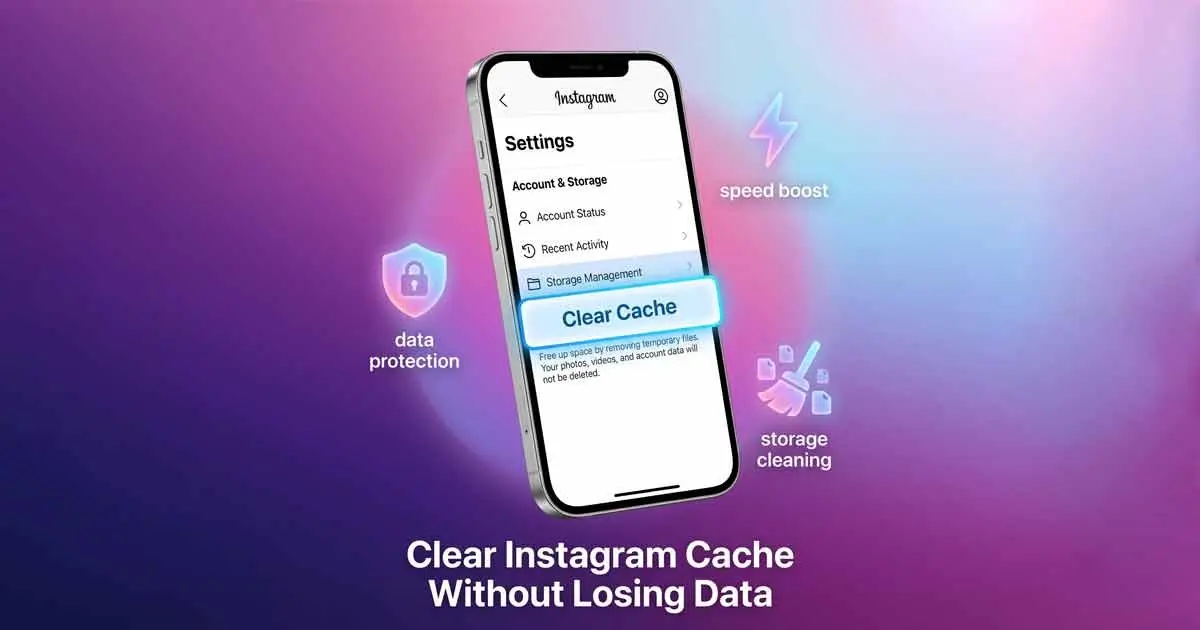
Cleaning the Instagram cache will delete some of the temporary files that the application uses to load content faster. In Android, it is possible to do this in the Settings menu, Apps, Instagram, Storage, Clear Cache. On iPhone, the app does not have any built-in button, and you need to delete and reinstall the application to clear up the cache information. This will enhance performance, eliminate glitches and free up storage without losing your account or posts.
Key Takeaways
- Cache = Instagram-stored data (images, videos, search history) that is temporary.
- Android: Delete cache in a few seconds through phone settings.
- iPhone: Needs deleting or offloading of apps.
- Advantages: Better performance of the apps, reduced number of bugs, increased storage.
- No loss of data: Your account, posts, and messages are secure.
What Is Instagram Cache?
Instagram cache is a set of temporary files stored on your gadget when using the app. These include:
- Profile images
- Video previews and reels.
- Search history
- Previously loaded feeds
This information assists Instagram to load quicker, however, in the long run it may build up and lead to performance problems.
Why Cache Can Be an Issue
Although cache enhances speed, too much or corrupted cache can cause:
- Freezing or crashing of apps.
- Slow loading feeds
- Storage consumption
- Display errors
Deleting it does not alter your account and it overwrites these temporary files.
Clear Instagram Cache Android
Android offers an inbuilt choice to clear cache.
Step-by-Step Instructions
- Go to the Open Settings of your phone.
- App Management or Tap Apps.
- Select Instagram
- Tap Storage & Cache
- Press Clear Cache
That is all. It is just a few seconds process, and does not log you out.
What does Clearing Do?
- Temporary files are destroyed.
- Initial load time of app can be a little slower.
- Performance improves afterward
How to empty the cache on Instagram on the iPhone?
There is no direct clear cache option of Instagram in iOS.
Step 1: Uninstall and Reinstall the App
- Tap on Settings, then General, then iPhone storage.
- Select Instagram
- Tap Delete App
- Reinstall via the App Store.
This will empty out all the cache files.
Method 2: Offload the App (Optional)
- Deletes the storage of apps but retains documents and data.
- Reinstalling refreshes cache
Important Note
After reinstalling, you will have to log in again, but your account data will not be lost.
Clearing Instagram Cache on Desktop
When you use Instagram in a browser, the cache is stored in the browser.
Steps (General)
- Open browser settings
- Search Privacy or History.
- Click on Clear browsing data.
- Select Cached images and files.
This enhances loading problems on web-based Instagram.
Android vs iPhone: Major differences
| Feature | Android | iPhone |
| Direct cache clear option | Yes | No |
| Requires reinstall | No | Yes |
| Time required | Seconds | Few minutes |
| Logs you out | No | Yes |
When is it Time to Clear Instagram Cache?
You need to empty the cache when you observe:
- Instagram running slow
- Crashing or freezing of apps.
- Problem with feed loading.
- Hard disk memory is low.
Experts usually suggest clearing cache not too often, but once in a while.
Advantages of clearing Instagram Cache
1. Improves Performance
Deleting unnecessary files will restore the app to normal operation.
2. Corrects Bugs and Glitches.
Errors due to cache corruption can be fixed by clearing.
3. Frees Storage Space
Media stored in cache can take up a lot of memory.
4. Enhances Privacy
Saved search and browsing history.
Will Clearing Cache Delete anything Important?
No. Clearing Instagram cache does not destroy:
- Your account
- Photos or videos
- Messages
- Followers or settings
It deletes only temporary files.
General Fallacies to be Wary of
- Clear data rather than cache (Android): This logs out and clears the app.
- Applying third-party cleaner applications: In-built applications are safer.
- Anticipating immediate speed improvement: First reload can be slower.
Expert Insights
A guide released by How-To Geek states that one of the simplest methods of fixing app problems is to clear the cache without having to interfere with user data.
According to a technical explanation by Beebom, the files in the cache are prone to “bloat or corruption,” thus causing performance problems.
Cybersecurity service Avast confirms that the only sure way to get rid of cache is to reinstall apps on iOS.
Practical Example
Slow loading of Instagram on Android: Cleared cache on a user:
- Storage saved by a number of hundreds of MB.
- The responsiveness of apps was also enhanced.
- No need to re-log in.
This is an example of how maintenance can enhance usability of apps.
You also read about previous content: Free TikTok Likes
Conclusion
One of the easiest methods to enhance the performance of the app and address the typical problems is to clear the cache in Instagram. Android users can do it in a few seconds using system settings, whereas iPhone users have to reinstall the application because the system does not allow it. The outcome is the same in both scenarios, a cleaner, faster and more stable Instagram experience.
To maintain a steady performance, cache clearing should be viewed as a regular maintenance and not a solution.
FAQs
1. How frequently do I need to clear Instagram cache?
Once every few weeks or in cases where performance problems emerge is enough.
2. Does clearing cache log out?
- Android: No
- iPhone: Yes (reinstalled)
3. Is it possible to clear Instagram cache without uninstalling the app on iPhone?
No, it is not yet possible to clear Instagram caches directly on iOS.
4. Why is instagram taking a long time to load despite clearing cache?
The possible causes are old app version, slow internet or storage capacity of the device.
5. Is it safe to clear the cache?
Yes, it is a normal and safe maintenance procedure of apps.